Settings
In iCL Portal, settings can be used to modify various aspects of how the system operates.
You need administrative privileges for this. The settings can be found in Settings/Settings
A setting is shown like the following in iCL Portal

- It provides a description that explains in detail, what the particular setting is about
- You can change the setting and save its value
- At any point, you can revert the current settings value to the default
- If it is a setting, that can be altered by a user, you will see the fourth button. It shows the number of users that actually changed this setting and are not using the value the administrator configured
Settings hierarchy
To ease up setting management, they can be configured hierarchically:
- for all tenants of a system (host)
- for a specific tenant
- and for a specific user
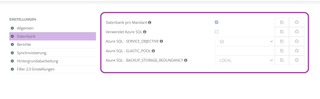
Most of the settings can be altered at each hierarchy level. But there are also settings on level 1 only, like the database settings, that affect where the data of newly added tenants is to be stored:
Hierarchically changing a setting
Hierarchically configuring a setting means the following.
- If the host administrator changes a setting (level 1), then this setting is used as the default for each tenant and user.
- As the default means, that a tenant admin sees this level 1 value as default value, meaning he can still change the setting even the host admin already changed it.
- If at any point, the tenant admin chooses to reset that setting to the default value, the default value is in fact not the value that the host administrator provided. (Not the default value as defined in the software itself)
- However, for the host admin, the default value will always be the one defined in the software (iCL Portal) itself.
In the same manner, settings (provided, they allow this) can be overwritten by any user.
Changing a user setting
In the settings view for administrators, you can only specify host-wide or tenant-wide settings. While you can see how many users did overwrite a particular setting, you can only reset it to the default value, but you cannot set it to any arbitry one.
To do so, you need to find the user in the users list (Settings/Users), and via the context menu of a given user, choose Settings

There you will be able to change each and every of that users settings to any valid value.
Specifying tenant-wide Filler 2.0 settings
Now, there is a list of settings, that should be changeable by each and every user. These can, amongst others, be found in the setting group Filler 2.0 settings:
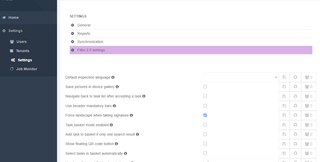
Those are the very same settings, that can be changed in the iCL Filler 2.0 app's settings view.
This means, that a tenant administrator can configure the settings for each and every of the users in one single place.
Now, each user can still overwrite these settings by specifying them in the app's settings view. But as they are synchronized with iCL Portal, you can at any time reset those settings as an administrator.
E-mail digest about report e-mails
A report e-mail may not reach all of its recipients: an entry in the report recipients is not a valid e-mail address (for example 0 or max.muster@company without a domain ending), or the mail server permanently rejects an address (for example because its domain does not accept e-mails).
The other recipients still receive the report. iCL Portal records each such problem and reports it in an e-mail digest, so that the iWorkbook or the data can be corrected.
Who receives the digest
- The designer of the iWorkbook: the user who created the version of the iWorkbook the report was created with. The designer receives the problems of their own iWorkbooks.
- The addresses of the setting Digest recipients (optional): they receive the problems of all iWorkbooks of the tenant.
If the designer's user account is deleted or inactive, or has no valid e-mail address, only the configured addresses receive the digest. If nobody can receive it, no e-mail is sent and the problems are kept until someone can.
Settings
The settings are in the group Report e-mail problems. They can be set for all tenants (host) and per tenant.

| Setting | Meaning |
|---|---|
| Digest recipients | Additional e-mail addresses that receive the digest, separated by a comma or a semicolon. Empty by default. |
| Digest schedule | How often the digest is sent: Off, Daily, Weekly or Monthly. Default: Weekly. |
| Digest day of week | The day a weekly digest is sent. Default: Monday. |
| Digest day of month | The day (1-31) a monthly digest is sent. In a shorter month it is sent on its last day. Default: 1. |
- Each problem is reported only once. If there is nothing new, no digest is sent.
- Problems that were resent or dismissed on the page Report e-mail problems are not reported.
- Problems are recorded while the digest is Off as well. They are sent once it is switched on again.
- A night in which the digest could not be sent (for example during an update) is caught up the following night.
- An invalid entry is recorded as soon as the report e-mail is sent. An address that the mail server permanently rejects is recorded the first time it is rejected, so it is part of the next digest. If a later automatic retry still reaches the address, the entry is removed again, unless a digest has already reported it.
The digest is sent early in the morning. The time is the schedule of the background job Schedule: report e-mail digest in the group Background processing, which only the host administrator can change.
What the digest contains
The digest starts with a link to the page Report e-mail problems, where the reports can be resent to a corrected address. It is grouped by iWorkbook, report template and where the address came from. For each address it lists the reason (invalid e-mail address, or the answer of the mail server), whether it is a recipient of the final or the draft report, and a link to every affected inspection with its date and the user who created the report.
| Where the address came from | Suggested fix |
|---|---|
| A field entered by the user (with its title, name and checklist) | Add a validation script to the field that checks the e-mail address with the regex blocks. |
| A field entered or calculated by a script | Check the script of the field or its source data. |
| A fixed address in the recipients of the report template | Correct the report recipients in the iWorkbook. |
| The variable <%user.email%> | The e-mail address of the user account is wrong. A tenant administrator corrects it in Settings/Users. |
| Not determined | The digest lists the fields and variables the address may have come from. |
The digest is written in the language of the designer, and in the default language of the tenant for the configured addresses.
A digest looks like this (text version; the e-mail also contains an HTML version with links):
The following report e-mails did not reach all of their recipients. Please correct the iWorkbook or the data, so that future reports reach everyone. Each problem is reported only once.

Fix and resend in iCL Portal: https://portal.example.com/#/settings/reportemailproblems

iWorkbook Elevator inspection (version 1.0.0.3)
  Report template Report.docx - recipients of the final report
    Field "E-mail of the customer" (customerEmail) in checklist "General", entered by the user
    Suggested fix: add a validation script to the field that checks the e-mail address with the regex blocks: https://docs.opti-q.com/docs/manuals/designer/blockly-scripting#regex-blocks
      - max.muster@company: invalid e-mail address
          Inspection "Main street 1" of 10/12/2026 by Max Muster, report "Report 4711.pdf": https://portal.example.com/#/inspections/.../view

Report e-mail problems
The page Settings/Report e-mail problems lists the addresses a report e-mail could not be delivered to - the same problems the e-mail digest reports, which links to the page (Fix and resend in iCL Portal). Tenant administrators can use it; for other roles it needs the permission ReportEmailProblems.Manage.

The tabs Open, Resent and Dismissed sort the problems by what has been done about them. They can be filtered by iWorkbook and by problem, and searched by address, report, inspection or iWorkbook.
| Column | Content |
|---|---|
| Address | The address the e-mail did not reach. For a resent problem also the corrected address. |
| Problem | Invalid address, or Rejected by the mail server with the answer of the mail server. |
| Where to fix | Where the address came from and how to fix it there, as in the digest. |
| Report · Inspection | The report file, the iWorkbook version and a link to the inspection. |
| Date | When the e-mail did not reach the address. For a resent or dismissed problem also when and by whom. |
Resend
Resend… opens a dialog with the report, the inspection and the wrong address. Enter the corrected address and confirm with Resend:
- The current file of the report is sent to the corrected address only, with the subject and text of the original e-mail. The other recipients do not receive it again.
- A report file larger than the setting Maximum attachment size (MB) is sent as a download link instead of an attachment, as in the original report e-mail (see Large report files).
- If other open problems have the same wrong address, the dialog offers to send their reports to the corrected address as well.
- The problem moves to the tab Resent. If the mail server rejects the corrected address as well, this is recorded as a new problem.
- Final and draft reports can be resent. If the report or its file no longer exists (for example because the report was deleted or the inspection was reopened), it cannot be resent - the problem can only be dismissed.

The corrected address is not stored in the report, the inspection or the iWorkbook, so the next report has the same problem. Fix the source shown under Where to fix:
- A field entered by the user: reopen the inspection and correct the answer in iCL Filler. To prevent the problem, add a validation script to the field (see What the digest contains).
- A fixed address in the report template, or a variable of the iWorkbook: correct the report recipients in iCL Designer and publish a new version of the iWorkbook.
- The variable <%user.email%>: correct the e-mail address of the user account under Settings/Users.
Dismiss
Dismiss marks a problem as dismissed if nobody needs the report at this address. The problem moves to the tab Dismissed and the report is not sent.
Resent and dismissed problems are no longer reported by the digest.
Database settings
this is an advanced topic and can only be configured by the system (host) administrator!
Any of these settings apply only to tenants that are created after those settings are applied. Changing any of these settings will not have any effect on any existing tenants! You will have to manually apply those changes to existing database (change their service level, join an elastic pool, etc.)
The following screenshot shows the list of database specific settings that can be configured by the host administrator

When you set up a new tenant, by default, all that tenants data is stored in one central database. This is ok if you only intend to use the tenant for demonstration purposes, or if there is only very little data stored ever. In any other case, it is advisable to create a new database for each new tenant. This is now also the default setting (see 1)
This setting is only an indicator showing whether or not the system is using Azure SQL Server. You cannot really change it. However, it is used by the following three settings to validate user input
When a new database is created, you need to specify the service objective. This determines the DTUs (data transfer units) available to that particular database, and therefore, its price. If you do not configure anything, SQL Azure will default to an S0 instance which costs about 300€ per month (as of the time of this writing February 2022)
Instead of specifying a service objective per database, Azure SQL allows to combine multiple databases in an elastic pool which can then utilize the available set of DTUs together. Given you plan to have many tenants and you do not know their database usage up front, pooling databases is the most cost-effective option.
noteWhen this setting is configured, it overwrites (3) - so the service objective, if configured, would be ignored
noteWhen you specify an elastic pool name, this pool must already exist. (Consult docs.microsoft.com on how to create a new elastic pool)
The option backup storage redundancy allows to configure how durable any backups of new databases have to be stored. (Local, Zone, Geo - please consult docs.microsoft.com for more information on this)