Complete an Inspection
When all mandatory questions in all checklists are answered, the inspection can be completed. This includes the automatic sending of final reports.
Ways to complete an Inspection
There are three ways of completing an inspection. You can finish it right after answering the last mandatory question, in the checklist overview menu or via the options menu of the inspection itself.
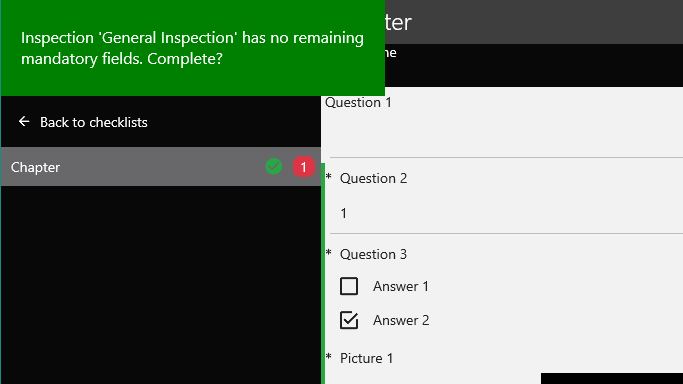
Within the Checklist
A green completion notification will appear when all mandatory questions are answered. Once pressed, you will be forwarded to the inspection list view and the completion progress will be initiated. The green completion notification will stay active for some seconds. This duration can be configured in the settings (see here).
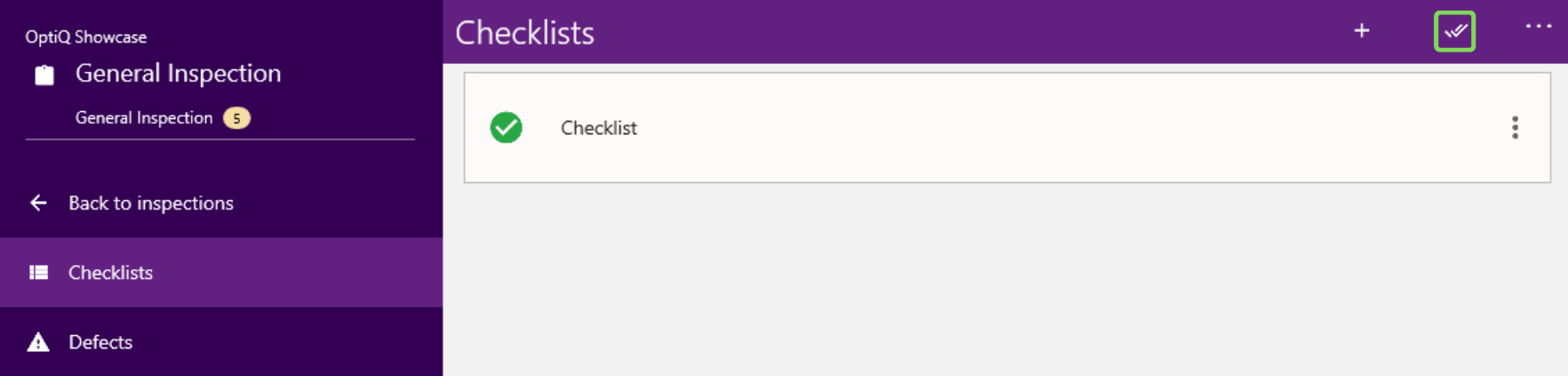
In the Checklist overview
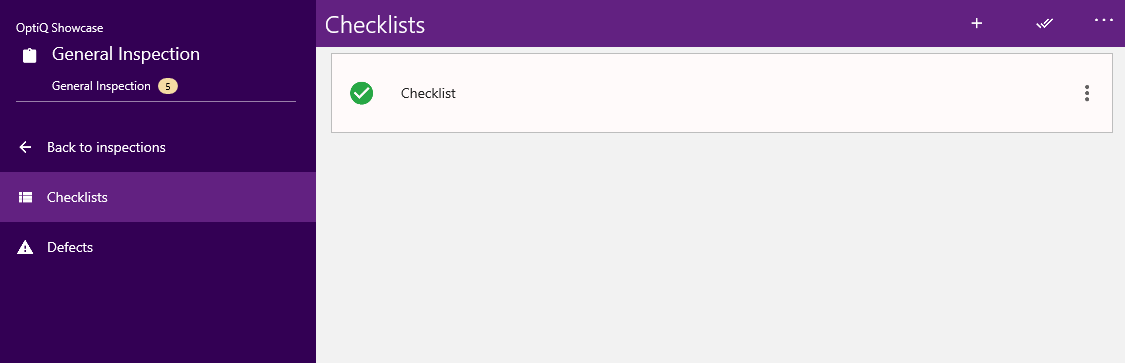
In the checklist view, a new icon appears on the top right as marked in the image. By clicking/tapping the icon, the completion progress will start and forward you to the inspection overview.
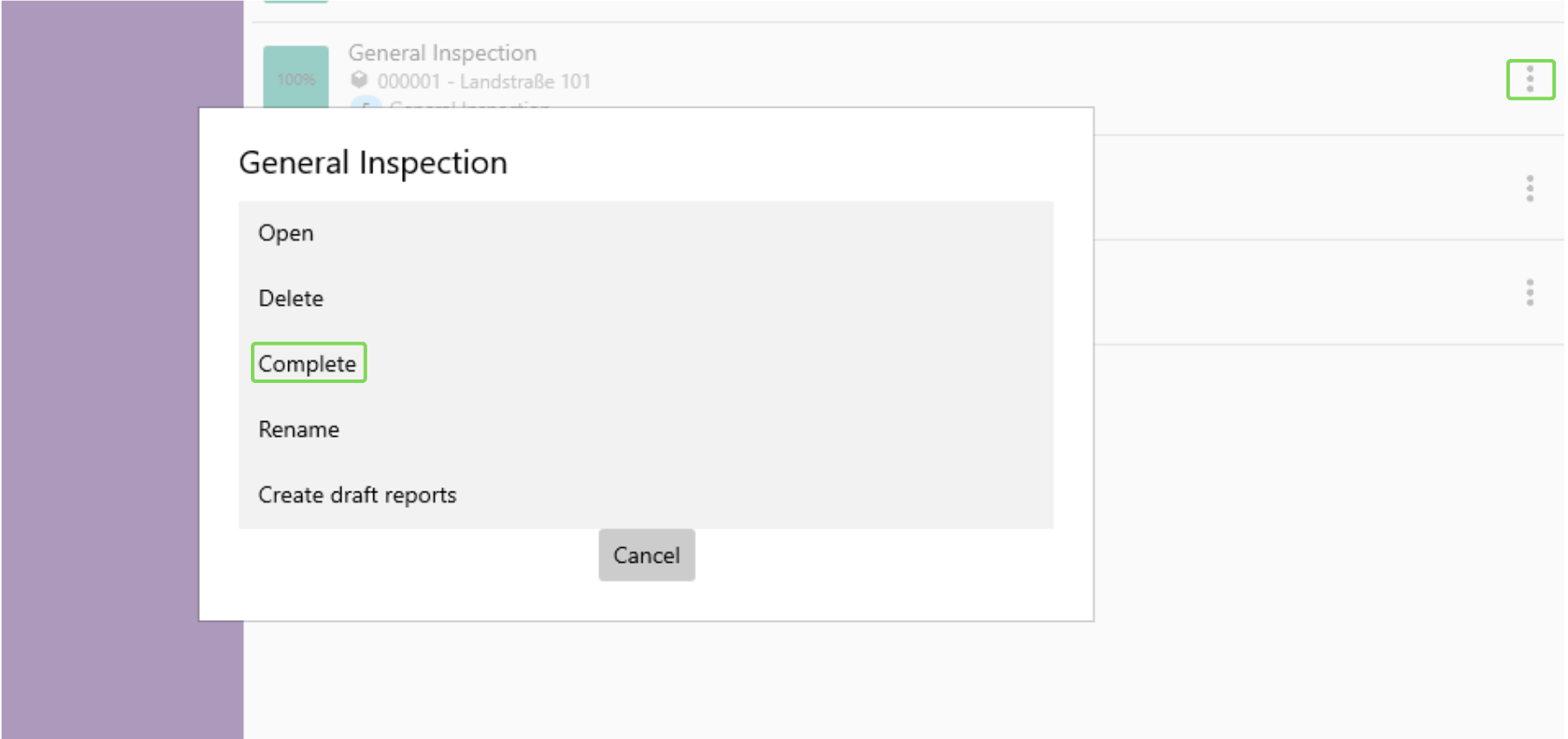
In the Inspection overview
You can also navigate back to the list view of inspections, open the options menu of the inspection and complete it from there.
Completion progress and indicators
During the completion progress the reports are generated for the inspection - this process may take a while. The inspection stays in the pending process as long as the reports have not been generated by iCL-Portal and as long as iCL Filler did not synchronize all the inspections data yet - as show on the next image.
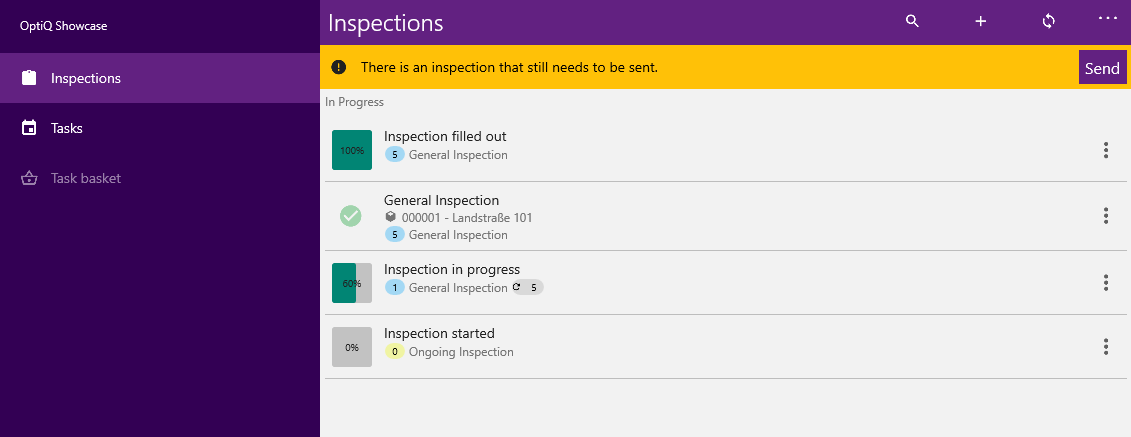
Please ensure a stable internet connection when trying to complete the inspection.
The Synchronization progress with the iCL Portal will start automatically when the report generation is complete. The inspection changes to the completed state and the process is finished.
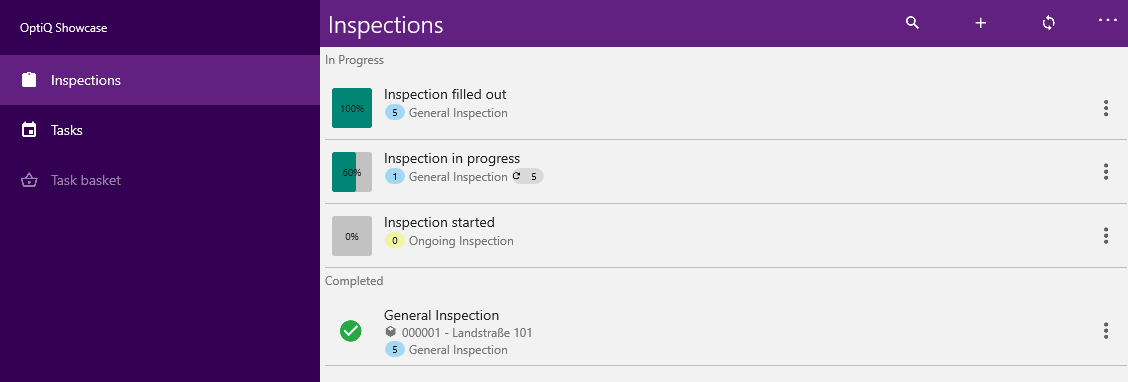
Reopen a completed inspection
A completed inspection is locked - you cannot change any of its answers anymore. If you still have to correct something, you can reopen the inspection and set it back to in progress.
Open the options menu of the completed inspection in the inspection list and select Reopen.

You have to confirm the reopen, because it deletes all final reports of the inspection. They are created and sent again once you complete the inspection the next time - with a new completion date.
| Option | Effect |
|---|---|
| Reopen | Sets the inspection back to in progress, assigns it to you and deletes its final reports. All answers, pictures and signatures are kept. |
Reopen can only be used when
- the inspection is completed, and
- the iWorkbook allows reopening (setting Can reopen in iCL Designer), and
- the iWorkbook's reopen window has not elapsed yet - it limits how long after the completion an inspection may be reopened
If reopening is not allowed at all, an administrator can still reopen the inspection in iCL Portal.
Every reopen raises the reopen counter of the inspection. A checklist can react to it, for example by asking you for the reason why the inspection had to be reopened. Such fields are updated right away, so you may find a new mandatory field in the checklist after reopening.
Read Reopening inspections to learn everything about reopening, the reopen counter and how it is configured.
Testers can reopen inspections even if the iWorkbook does not allow it - see the test mode guide.